- Home
-
Products
-
Product collection
-
- Application
- OEM&ODM
- News
- About Us
- Contact Us


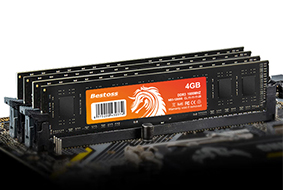
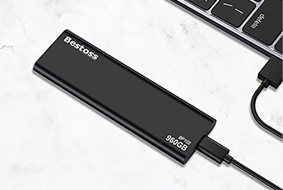
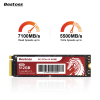
After purchasing an SSD, many users have questions: Why does my high-speed SSD seem slower after only six months? Why does performance degradation occur after just two years? Did I buy a substandard product? Actually, SSD performance and lifespan are significantly affected by daily usage habits, in addition to the quality of the hardware itself. Ution-Best has compiled 10 practical tips to help extend SSD performance and lifespan.
I. Core Optimization Techniques: Balancing Performance and Lifespan
1. Enable TRIM Support – The Key to Preventing SSD Performance Degradation
TRIM acts like a "junk cleaner" for your SSD, allowing the system to inform the SSD in advance which data blocks can be deleted, preventing the SSD from repeatedly overwriting invalid data and causing performance degradation. Windows 10/11 systems have TRIM enabled by default. If you're unsure whether it's enabled, you can run Command Prompt as administrator and type "fsutil behavior query DisableDeleteNotify". A return value of "0" indicates it's enabled, while a return value of "1" indicates it needs to be manually enabled (type "fsutil behavior set DisableDeleteNotify 0"). All Ution-Best SSDs perfectly support TRIM, and enabling it ensures stable read and write speeds over a long period.
2. Keep SSD Firmware Updated – Bug Fixes + Algorithm Optimization
Many users neglect firmware updates, but manufacturers optimize SSD controller algorithms, fix potential vulnerabilities, and even improve durability through firmware updates. U-Speed recommends checking the firmware version every 3-6 months. You can download the corresponding firmware update tool from the U-Speed website; the entire process is user-friendly and takes only a few minutes. Note: Always back up important data before updating to avoid update failure due to unexpected power outages.
3. Avoid Defragmentation – SSDs Don't Need a “Disk Cleanup”
While mechanical hard drives rely on defragmentation to improve speed, SSDs operate on a different principle. Defragmentation not only doesn't improve performance but also increases unnecessary write operations, accelerating flash memory wear. It's recommended to directly disable Windows' automatic defragmentation function: Right-click the SSD drive letter → Properties → Tools → Optimize, uncheck “Run on a schedule,” and delete existing defragmentation schedules to reduce invalid writes at the source.
4. Disable Hibernation – A Small Detail to Reduce Write Waste
Hibernation writes all data in RAM to the SSD, creating a huge hibernation file (approximately equal in size to RAM). Each hibernation cycle generates numerous write operations. For SSD users, "Sleep Mode" can completely replace hibernation (sleep only puts the system into standby mode without writing data). To disable hibernation: Control Panel → Power Options → Choose what the power buttons do, click "Change settings that are currently unavailable," and uncheck "Hibernate." This significantly reduces SSD write pressure.
5. Optimize Page File Settings – Balancing Performance and Waste
The page file (virtual memory) is frequently read and written to the SSD, which can affect its lifespan in the long run. It is recommended to adjust settings based on RAM capacity: Users with ≥16GB RAM can set the page file to "System Managed Size" or disable it entirely (suitable only for scenarios without running large software); users with ≤8GB RAM should move the page file to the HDD (if using dual hard drives) or set it to 1.5 times the RAM capacity to avoid frequent writes to the SSD.
6. Reduce Unnecessary Write Operations – Reduce Wear and Tear from the Source
The lifespan of an SSD is directly linked to the number of write cycles. Reducing invalid writes can significantly extend its lifespan. Daily adjustments include: moving download folders and temporary file directories to the HDD; disabling browser caching and automatic file saving in chat software to the SSD; avoiding using the SSD as a download drive, especially in high-frequency read/write scenarios like BitTorrent and Xunlei. Tests by Youxunjia show that properly avoiding invalid writes can extend SSD lifespan by more than 20%.
7. Enable AHCI Mode – Unleash the Full Speed of SSD Performance
AHCI mode is a prerequisite for SSDs to operate at full speed. If set to IDE mode, the SSD's read and write speeds will be limited. To enable it: Restart your computer and press the BIOS shortcut key (different motherboards may use different keys, commonly F2 or Del), switch to AHCI in the "Storage Mode" option, save the settings, and restart. Note: Switching modes with Windows already installed may cause a blue screen. It is recommended to set AHCI mode before installing the operating system.

8. Manage System Restore Points – Avoid Excessive Usage and Writes
System restore points periodically create snapshots and write them to the SSD. Too many restore points not only consume space but also increase write overhead. It is recommended to manually control the number of restore points: Right-click This PC → Properties → System Protection → Configure, and adjust the disk space usage to 5%-10% (the smaller the SSD capacity, the lower the percentage). Also, regularly delete old restore points, keeping only the most recent 1-2, thus preserving restore functionality while reducing the SSD's workload.
9. Regularly Back Up Data – More Than Just Protection
It's a Prerequisite for Optimization Regularly backing up data may seem unrelated to performance and lifespan, but it allows you to perform optimization operations with greater peace of mind (such as disabling the page file and clearing the cache). It is recommended to back up important data weekly using an external hard drive or cloud storage. U-Link reminds you: SSD failures may not show obvious signs beforehand; regular backups can prevent data loss. After backup, you can also perform SSD defragmentation (not defragmentation) and cache release, indirectly maintaining performance stability.
10. Keep SSDs Operating at Low Temperatures – High Temperatures are the Enemy of Flash Memory
High temperatures accelerate the aging of flash memory chips, shortening their lifespan and causing SSDs to slow down. For daily use, ensure proper airflow in your desktop case to prevent the SSD from being surrounded by heat sources like the graphics card and CPU; avoid prolonged full-load operation in laptops and consider using a cooling pad; for industrial applications, we recommend using a Ution-Best wide-temperature SSD (-40℃~85℃) and ensuring proper device cooling design. Real-world testing shows that keeping the SSD operating temperature below 50℃ can extend its lifespan by 30%.
Optimizing SSD performance and extending its lifespan isn't complicated. The key is to avoid common pitfalls (such as defragmentation), reduce invalid writes, and control operating temperature. By following these 10 tips and using a high-quality Ution-Best SSD, even in high-frequency usage scenarios, your SSD can operate stably for over 5 years. For more optimization solutions tailored to your specific device, visit the Ution-Best website and contact a technical advisor for one-on-one guidance.


By continuing to use the site you agree to our privacy policy Terms and Conditions.
 Language