- Home
-
Products
-
Product collection
-
- Application
- OEM&ODM
- News
- About Us
- Contact Us


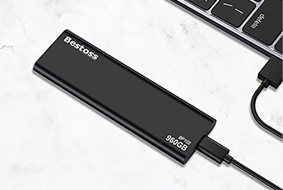
Who hasn't encountered this situation? The USB flash drive doesn't respond when plugged into the computer, files transferred for ages suddenly become corrupted, and it's not recognized when you unplug and plug it back in—don't blame the USB drive for "poor quality," it's most likely due to incorrect operation.
USB flash drive seem simple, but to use them smoothly and reliably, there are quite a few tricks involved. As a China USB Flash Drive Supplier with 17 years of experience focusing on storage, Bestoss will break down the correct usage based on common scenarios.
1. Plug In: Don't force it in! How to plug in different interfaces correctly:
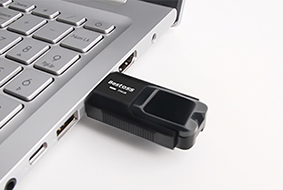
• First, check the interface: USB flash drives commonly use USB-A (square head) and USB-C (oval head). Many Bestoss models have dual interfaces, meaning they can be plugged in either way. However, USB-A models are reversible. Look at the metal contacts inside the interface, align them with the computer port, and gently push. You should hear a "click" sound when it's secure. Don't force it in, or you'll bend the pins and ruin the drive.
• Wait for recognition before operating: Windows will display a "Removable Disk" prompt, and Macs will show a USB drive icon on the desktop. Wait at least 3 seconds before clicking on it.
Is your older computer's USB 2.0 port slow to recognize? Don't unplug it immediately; wait an extra 10 seconds. If that doesn't work, try a Bestoss dual-protocol USB flash drive, which is compatible with both new and old devices.
• Pay attention to port location: For desktop computers, prioritize plugging into the USB ports on the back of the case for more stable power. For laptops, don't plug it in too tightly to avoid accidentally pulling the USB drive loose when opening or closing the screen.
2. Transferring Files: Drag and Drop is Enough? These Details Determine Success or Failure
Copying files is the most common operation, but small oversights can ruin it:
• Basic Operations Here: In Windows, locate the file you want to transfer, right-click and select "Copy," then open the USB drive folder and select "Paste"; on Mac, simply drag and drop.
The key is to wait for the progress bar to complete—even if it's only 1%, don't rush to do anything else. Switching software or closing windows midway can lead to file corruption.
• Large Files Can't Be Transferred?
This pitfall wasn't mentioned in the previous article! If you get a "File Too Large" error when transferring videos larger than 4GB, first check the USB drive's format: FAT32 doesn't support large files. Bestoss USB drives default to exFAT, which works on both Windows and Mac, and can transfer 10GB files without problems; if it's an older USB drive, format it beforehand (remember to back up your data).
• Don't transfer too many files at once: Transferring 1-2 large files at a time is much faster than opening five or six transfer windows. Bestoss uses USB drives with Grade A flash memory chips, ensuring stable read and write speeds, but overloaded transfers can still cause lag. It's more convenient to wait for one file to finish before transferring the next.
3. Eject: This step isn't "unnecessary," it's for data protection.
"Unplugging immediately after transferring" is the number one culprit for destroying USB drives. The correct procedure is as follows:
• Windows: Click the "Safely Remove Hardware" icon in the lower right corner (looks like a USB drive with an arrow), select your USB drive name, click "Eject," and wait for the prompt "Safely remove" before proceeding. Don't unplug it as soon as the icon disappears; wait an extra 2 seconds to confirm.
• Mac: Select the USB drive icon on your desktop, right-click and select "Eject," or drag the icon to the Trash. Wait for the icon to disappear before unplugging.
• Why is ejecting necessary?
When transferring files from a USB drive, the data is first stored in a cache. The eject function allows the cached data to be fully written to the chip. Directly unplugging it will cause data interruption, resulting in file corruption or, in severe cases, bad blocks on the USB drive, leading to a decrease in speed after a few uses.
4. Unplugging: Handle with care to avoid damaging the interface.
There's also a proper way to unplug a USB drive after ejection: Pinch the USB drive body and pull it out; don't pull the cable (if it has a cord), and don't twist it.
After unplugging, if you won't be using it immediately, put the dust cap back on—many Bestoss USB drives have a built-in dustproof design to prevent dust from entering the interface, especially in dusty environments like industrial workshops and construction sites, where excessive dust can cause poor contact.
1. Data Security: Don't wait until it's lost to regret it.
• Double backup of important files: A USB drive is a "mobile warehouse," not a "safe." It's best to store a copy on your computer or in the cloud.
We offer USB drives with AES-256 encryption. Once password protected, even if someone finds one, they can't access it, making them ideal for OEM distributors supplying enterprise clients, adding higher value.
• Scan unfamiliar computers for viruses: Before using a USB drive in public areas like print shops, scan the other computer with their antivirus software to avoid virus infection and data corruption.
2. Routine maintenance: These habits extend lifespan
• Don't overfill: Leave at least 2GB of free space on a 16GB USB drive, and 4GB on a 32GB drive. Overfilling forces the chip to frequently erase and overwrite, resulting in rapid speed loss and increased risk of damage.
Suppliers can remind customers not to overfill their USB drives, demonstrating thoughtful service.
• Avoid extreme environments: Don't leave it in a car exposed to direct sunlight in summer (temperatures can reach 60℃+, causing chip aging), and don't put it in your pants pocket in the rain.
Choose dustproof and waterproof USB drives that can operate from -40℃ to 85℃, significantly reducing the need for repairs.
3. Minor Troubleshooting: Don't Throw Away a Broken One
• Unrecognized?
Try a different USB port and restart your computer. If that doesn't work, use the Bestoss official website's diagnostic tool to repair it.
• File corruption?
Right-click the USB drive, select "Properties," then click "Tools," then "Check." Repair disk errors;
most corrupted files can be recovered.
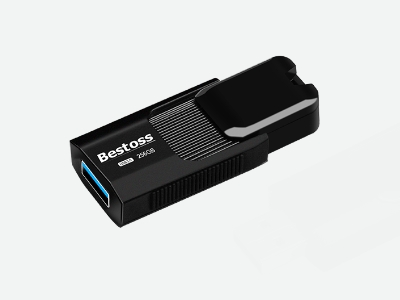
Bestoss USB drives for its customers not only work but are also worry-free.
Our USB drives are designed with these needs in mind:
• Reinforced interface, withstands over 5000 insertions and removals without loosening, making them 3 times more durable than ordinary USB drives;
• All models use Grade A flash memory chips, with a stable write speed of over 60MB/s, transferring a 1GB file in less than 20 seconds;
• OEM customization is supported, including brand logo printing and custom packaging. Minimum order of 100 pieces; small trial orders are also cost-effective.
Want to learn about customized solutions or request samples?
Click on the official website to contact the Bestoss team: https://www.ution-best.com.


By continuing to use the site you agree to our privacy policy Terms and Conditions.
 Language