- Home
-
Products
-
Product collection
-
- Application
- OEM&ODM
- News
- About Us
- Contact Us

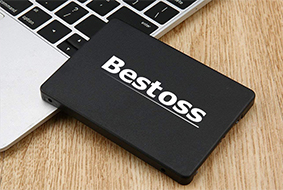
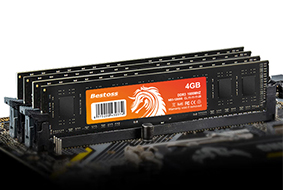
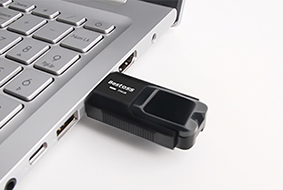
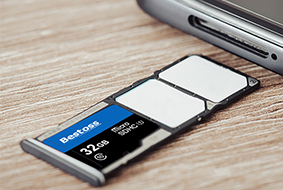
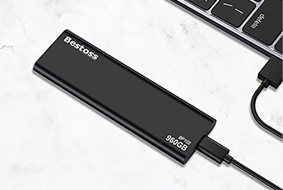
Long boot times, 4K video transfers stuck in a loop, data loss from a laptop drop—these can all be solved by upgrading to an SSD (Solid State Drive). But what exactly is an SSD? How does it compare to the mechanical hard drives in older computers? Is it worth the upgrade? As a Chinese SSD supplier with 17 years of experience in storage, Bestoss will help you understand SSDs all at once.
I. In a nutshell: What exactly is an SSD?
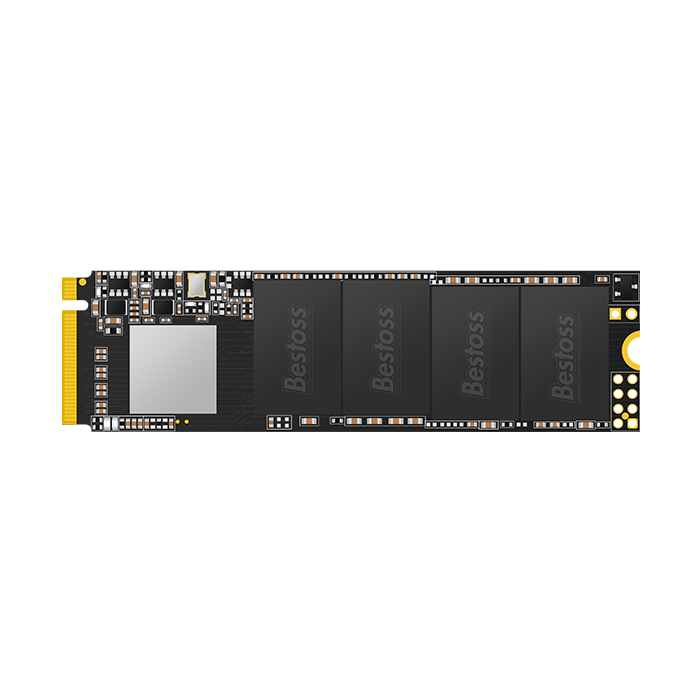
A Solid State Drive is a device that stores data using "flash memory chips"—similar in principle to the storage of mobile phones and USB flash drives, but with significantly higher performance. Its key feature is "no moving parts": older mechanical hard drives contain rapidly spinning metal platters and moving read/write heads, relying entirely on the "platter spinning, head searching" mechanism, like a record player—there's a limit to how fast they can go. SSDs, on the other hand, transmit data entirely through electronic signals, eliminating the hindrance of mechanical movement. This is the fundamental reason why they are both fast and durable.
Don't assume that "all storage is the same." Try it and you'll see the difference: a computer with an SSD boots up in under 10 seconds instead of a minute; upgrading your phone's storage to SSD-level speeds up 4K video recordings and saves instantly without buffering—that's the magic of SSDs.
II. Four Core Advantages of SSDs: An Experience You Can Never Go Back From
SSDs are gradually replacing mechanical hard drives not because of hype, but because they genuinely solve the pain points of ordinary users' storage needs:
1. Speed: Lightning Fast, Incredibly Convenient for Daily Use
This is the most obvious advantage of SSDs, saving time at every step from booting up to transferring files:
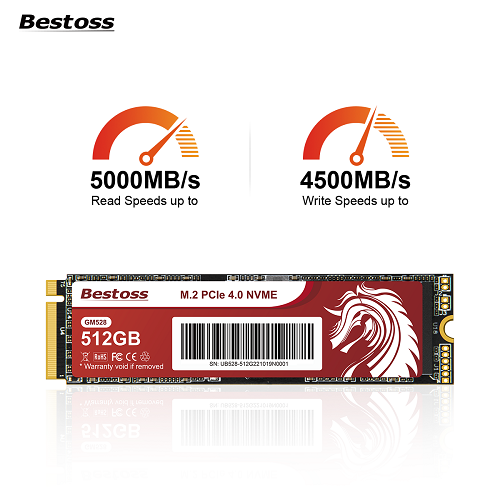
• Booting Up: Mechanical hard drives typically take over 40 seconds to boot, while Bestoss's SATA SSDs only take 10-15 seconds, and high-end PCIe 4.0 SSDs can even boot into the system in 5 seconds. No more waiting for the loading screen to spin for ages when you turn on your computer in the morning;
• Loading Software: Adobe Photoshop takes 20 seconds on a mechanical hard drive, but only 3 seconds on an SSD; when playing demanding games like Genshin Impact and Cyberpunk 2077, SSDs load maps 2-3 times faster than mechanical hard drives, so your teammates will no longer be urging you to "hurry up and get into the dungeon";
• Transferring Large Files: A 10GB 4K video transfer takes over 10 minutes on a mechanical hard drive, but only a few minutes on an SSD. Video editors no longer need to stare at the progress bar.
2. Durable and Robust: A lifesaver for mobile devices, unaffected by drops and impacts. Mechanical hard drives have delicate platters and heads; a laptop accidentally dropped or subjected to excessive shaking during transport can easily fail. SSDs, on the other hand, lack these fragile components and are far more shock-resistant. Bestoss SSDs have undergone 1.5-meter drop tests, ensuring stability even when installed in tablets or outdoor cameras.
Families with children will understand; children frequently knock laptops over. With an SSD, you don't have to worry about losing all your data in a fall. Outdoor photographers can carry an SSD-equipped external hard drive in their backpacks, protecting their data even while hiking or wading through water.
3. Quiet and Power-Saving: A Boon for Laptop Users and Quiet Users
Mechanical hard drives (HDDs) make a buzzing noise when spinning, especially noticeable when using a computer late at night; SSDs are completely silent because they have no rotating parts – using a computer in a library or bedroom is completely quiet, with only the sound of your own typing.
Power saving is also a major advantage: laptops with SSDs can have 1-2 hours more battery life than those with HDDs. Anyone who frequently takes their laptop out for work or classes knows how important those 1-2 hours are; no more searching for power outlets to "extend" your battery.
4. Less Heat: No More Hot Legs in Summer
Mechanical hard drives get hot after spinning for a while, making it unbearable to sit on a laptop with the palm rest on your lap in the summer; SSDs, because they have no moving parts, generate very little heat. Even after transferring large files for several hours, the casing only gets slightly warm.
More gamer-friendly: When playing AAA games, computer hardware already generates a lot of heat. The low-heat characteristics of SSDs reduce the overall heat dissipation burden on the computer, eliminating worries about frame drops due to overheating.
III. How does an SSD work? No need for technical expertise, just understand this:
No need to delve into complex principles, just remember the core logic, it's simpler than you think: The core of an SSD is the "NAND flash memory chip," which contains countless storage units like "small cells." Data is stored in these "small cells." These "small cells" first form "pages," and multiple "pages" are then combined into larger "blocks."
When you want to write new data, the "controller chip" in the SSD (equivalent to the SSD's "brain") first clears the old data in the corresponding "block" before writing the new data—this process is called "garbage collection." A good controller chip (such as the Phison or SMI controllers used by Bestoss) can make this process fast and stable, and even after three to five years of use, the SSD's speed will not significantly decrease; while a poor-quality SSD's controller is inadequate, and its speed may start to drop after only six months of use.
IV. Don't Buy SSDs Randomly
When choosing an SSD, focus on these three key points:
1. Look at the interface: SATA interface SSDs offer high cost-performance and are suitable for upgrading older computers; PCIe 3.0/4.0 interface SSDs are faster and suitable for new computers or those needing to play games or do design work;
2. Look at the flash memory: Choose "original A-grade flash memory," and avoid buying unlabeled "white chips" or "black chips." These types of SSDs have short lifespans and are prone to failure. Bestoss SSDs use only original factory chips, which will be clearly stated on the packaging;
3. Look at the warranty: Prioritize SSDs with a warranty of 3 years or more. Our SSDs not only have a 3-year warranty but also support nationwide warranty, so you can directly contact after-sales service if there are any problems, without having to solve the problem yourself. Whether you're extending the life of an old computer or upgrading storage for a new device, SSDs are a choice that significantly improves the user experience. Bestoss has been in the storage industry for 17 years, maintaining strict control over everything from chip selection to production quality control, ensuring users enjoy high speeds without worrying about performance milestones.
If you're still struggling to decide which SSD to upgrade your computer to, or want to learn about specific model specifications, contact us on the Bestoss website for personalized recommendations—making upgrading your storage simple and worry-free.


By continuing to use the site you agree to our privacy policy Terms and Conditions.
 Language